
Phasing Out of Client Authentication from Publically Trusted Mutual TLS Certificates
 Feb 4, 2026


Mutual TLS (mTLS) through certificates issued by public Certificate Authorities are changing - audit your environment before the changes come into effect to ensure you do not have outages.
What is changing?
Client Authentication in the Extended Key Usage (EKU) field is being removed from TLS certificates issued by public Certificate Authorities (CAs).
If you’re not sure what this is, a picture of a TLS certificate with its details may help:
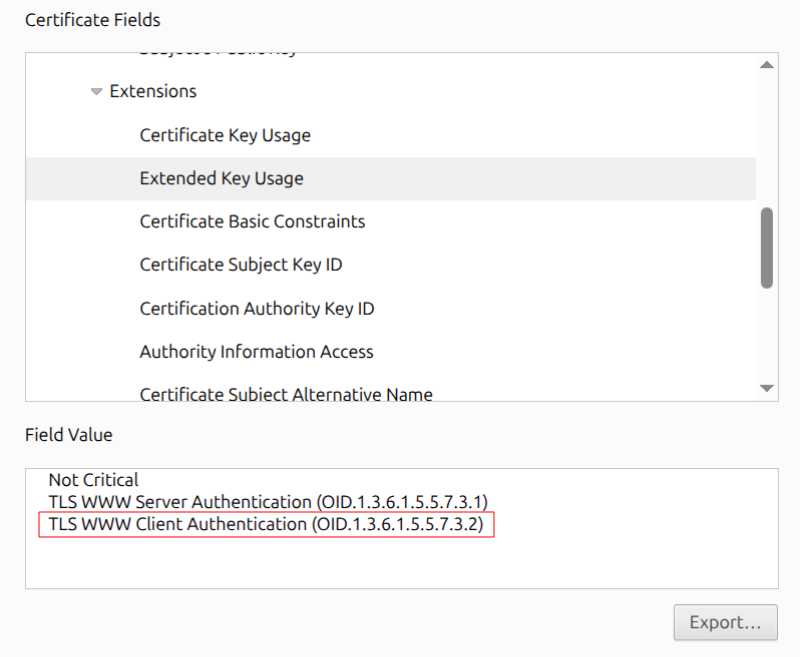
The bit in red (Client Authentication) is one of the uses this certificate can be used for. This particular use is now going to be removed by all Public Certificate Authorities (those organisations that issue certificates) and is going to be enforced by all browsers by mid 2026.
Why is this being enforced?
Certificate Authorities have for a long been issuing certificates with the Extended Key Usage field containing both Server Authentication and Client Authentication - this means they have a dual-purpose. However for public CAs, there is no actual need for Client Authentication as these certificates are issued for web servers to provide Server Authentication. Client Authentication is specifically used for private usecases, as an example for system to system integrations with Mutual TLS (mTLS). Therefore the decision has been made to reduce the risks associated with dual-purpose certificates and enforce stricter guidelines for their use, clearly separating public and private key infrastructures.
What is the timeline for this?
Below are key dates related to this change:
2025-02-15 Google Chrome Root Program Policy 1.6 was issued, which details the principle of serving only TLS server authentication use cases, and the Chrome Root Program will “phase-out” multi-purpose roots from the Chrome Root Store.
2025-09-15 Google Chrome Root Program Policy 1.6 recommends to complete a new dedicated TLS server authentication PKI hierarchy prior to this date.
2025-10-01 DigiCert stopped including the Client Authentication EKU in their public TLS certificates by default.
2026-06-15 All Certificate Authorities must enforce an extendedKeyUsage purpose of only Server Authentication.
How could my organisation be affected?
The vast majority websites and applications will be unaffected. However, if you have any internal applications, system to system or device authentication, or mutual authentication integrations, then you will likely be affected and outages may occur. The common scenarios we have seen are with Mutual TLS (mTLS) between internal services, or between organisations and third parties for system to system integrations.
These types of integrations should all be thoroughly checked and tested way before the deadline, as when things are enforced, rollbacks will not be a possibility - only creation of new certificates with single purpose EKUs will be possible. You don’t want to be putting in private key infrastructure under duress to get things up and running!
We’ve summarised this in the table below:
| Scenario | Potential Impact | Recommended Action |
|---|---|---|
| Standard Websites | No impact | Nothing |
| System-to-system, Device Authentication, Mutual TLS (mTLS) | Servers can’t authenticate clients | Investigate and change to dedicated client certs |
| Legacy Applications | Dual-use certs rejected or incompatibile | Update applications, Investigate and change to dedicated client certs |
So what should I do about it?
Below we break down the steps we run through with our clients:
- Check certificate inventories to find out which certificates currently are issued with dual-purpose Extended Key Usage (EKU)
- Determine if the systems require the Client Authentication EKU (e.g. by provisioning and testing all systems with Server Authentication only)
- For those systems that do require the Client Authentication EKU, provision private key infrastructures to satsify requirements, issue and test new certs
- Ensure all processes are up-to-date around certificate request, renewal, revocation documentation
- Add all new certificates to certificate inventory, for future monitoring of expiry and to avoid outages
Tools
So if you’ve read step 1 above and you realise you don’t have a centralised certificate inventory, you’ve probably been struggling (like some of our clients) to find out how you can check various certificates that are being presented by your various internal facing web and application servers.
Below we’ve pulled together some commands that can help you extract the information you might need to check your systems.
OpenSSL (Linux)
This is by far the easiest method to grab the info from accessible servers. Using the OpenSSL library, we initate a connection to the server and using the s_client argument to get the server’s public certificate.
We then pipe the output into grep to just pull out the EKU and SAN so if I’m checking multiple servers, I know which one this came from.
$ echo | openssl s_client -connect fluidsecurity.co.nz:443 2>/dev/null | openssl x509 -text -noout | grep -A1 "Extended Key Usage\|Subject Alt"
            X509v3 Extended Key Usage:
                TLS Web Server Authentication, TLS Web Client Authentication
            ....
            X509v3 Subject Alternative Name:
                DNS:fluidsecurity.co.nz, DNS:www.fluidsecurity.co.nz
Powershell (Windows)
This method has been designed to be able to again grab the info from accessible servers (rather than internal Windows Certificate stores). I’ve tried to make it parameterised function so you can call it easily for multiple different servers.
param (
    [string]$fqdn='fluidsecurity.co.nz',
    [int]$port=443
)

function check_eku {

    param (
        [string]$fqdn='fluidsecurity.co.nz',
        [int]$port=443
    )

    # Allow connection to sites with an invalid certificate:
    [Net.ServicePointManager]::ServerCertificateValidationCallback = {$true}

    $timeoutMilliseconds = 5000
    $url=https://$fqdn

    Write-Host `n Checking $url -f Green
    $req = [Net.HttpWebRequest]::Create($url)
    $req.Timeout = $timeoutMilliseconds
    try {$req.GetResponse() | Out-Null} catch {}

    if ($req.ServicePoint.Certificate -ne $null) {
        $certinfo = New-Object security.cryptography.x509certificates.x509certificate2($req.ServicePoint.Certificate)
        $certinfo | fl
        $certinfo.Extensions | where {$_.Oid.FriendlyName -like 'enhanced*'} | `
        foreach { $_.Oid.FriendlyName; $_.Format($true) }
    }
}

if (Test-NetConnection -port $port  $fqdn -InformationLevel Quiet) {
    check_ssl -fqdn $fqdn -port $port
} else {
    throw "unable to connect to FQDN '$fqdn' on port $port"
}
Once you’ve loaded the below function into a Powershell session, you can call it again by just calling the following (note you only need to add the port if it is different to 443):
check_eku -fqdn <domain> -port <port>
Python
There may be simpler ways to do this in Python, but I’ve gone for the quickest way I know and have modified an old script from the past.
import ssl
import socket
import sys
from cryptography.x509 import load_der_x509_certificate
from cryptography.x509.oid import NameOID
from cryptography.x509 import ExtensionOID
from cryptography import x509


hostname = sys.argv[1]
port = 443

# Create a socket and wrap it with SSL
context = ssl.create_default_context()
with socket.create_connection((hostname, port)) as sock:
    with context.wrap_socket(sock, server_hostname=hostname) as ssock:
        # Get the certificate in DER format
        cert_der = ssock.getpeercert(binary_form=True)

# Load the certificate
certificate = load_der_x509_certificate(cert_der)

print(f"Certificate details for host: {hostname}")

# Get the Issuer and Subject
issuer_name = certificate.issuer.rfc4514_string()
subject_name = certificate.subject.rfc4514_string()
print(f"Issuer: {issuer_name}")
print(f"Subject: {subject_name}")

# Get DNS Names (SANs)
sans = []
san_extension = certificate.extensions.get_extension_for_oid(x509.ExtensionOID.SUBJECT_ALTERNATIVE_NAME)
if san_extension:
    for x in san_extension.value:
        if isinstance(x, x509.DNSName):
            sans.append(x.value)
print(f"Subject Alternative Names: {sans}")

# Get the Extended Key Usage extension
eku_extension = certificate.extensions.get_extension_for_oid(ExtensionOID.EXTENDED_KEY_USAGE)

# Extract the OIDs from the EKU extension
eku_oids = [usage.dotted_string for usage in eku_extension.value]

# Print the OIDs
print(f"Extended Key Usage OIDs: {eku_oids}")

# For better readability, you can map OIDs to common names
oid_map = {
    '1.3.6.1.5.5.7.3.1': 'Server Authentication',
    '1.3.6.1.5.5.7.3.2': 'Client Authentication',
    '1.3.6.1.5.5.7.3.8': 'Time Stamping',
    '1.3.6.1.5.5.7.3.9': 'OCSP Signing'
}

readable_eku = [oid_map.get(oid, oid) for oid in eku_oids]
print(f"Readable EKU: {readable_eku}")
Running the above gives the following:
$ python3 check_eku.py fluidsecurity.co.nz
Certificate details for host: fluidsecurity.co.nz
Issuer: CN=R13,O=Let's Encrypt,C=US
Subject: CN=fluidsecurity.co.nz
Subject Alternative Names: ['fluidsecurity.co.nz', 'www.fluidsecurity.co.nz']
Extended Key Usage OIDs: ['1.3.6.1.5.5.7.3.1', '1.3.6.1.5.5.7.3.2']
Readable EKU: ['Server Authentication', 'Client Authentication']
Java Key Store (JKS)
For those systems that you identify are running Java, and may have mTLS connections setup to integrate to other systems. You will need access to the Java Key Store (files with extension .jks) and the corresponding password. Using the Java keytool command, we can list all of the certs within the key store, find the one that we want more details on and export this using its alias so we can print all the corresponding info, including the EKU.
# List the certs in the Java Key Store (you will be prompted for the keystore password)
keytool -list -v -keystore example.jks

# Export the cert you want more details on into a file
keytool -exportcert -alias client -keystore example.jks -file client.cer

# Print the details of the cert
keytool -printcert -file client.cer
Running the above will show all the details including if it has EKUs set as in the example below:
....
#6: ObjectId: 2.5.29.37 Criticality=false
ExtendedKeyUsages [
  clientAuth
  serverAuth
]
....
Known Issues
We are still deep in research with various clients to see what kinds of errors might occur, or those libraries and components that have known issues or produce particular errors.
We will update this section as new information is found.